

 Admin
Talk with your guild or party by voice, right inside the game, with no other program. Only the members of your room hear you, no voice is ever recorded, and your microphone only opens while you're in a room.
1. Who can join
- Anyone in a guild or a party: the guild's room shows once you're in a guild, the party's once you're in a party.
- A room holds up to 80 members; after that you see "The room is full."
- Leaving the guild or party takes you out of its room.
2. Open the window and join
- The headset among the menu icons under the Basic Info window opens and closes the Voice chat window.
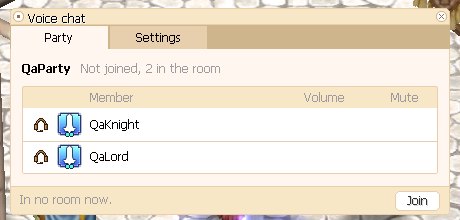
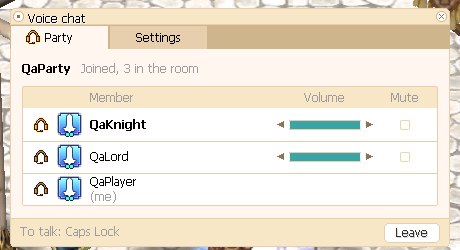
- Each room has a tab at the top: Guild and Party, each showing who is in that room now.
- Join puts you in the room and Leave takes you out.
3. Talking
- Push to talk: hold Caps Lock and your voice goes to the room; let go and it stops.
- While you're in a room with the game in front, Caps Lock doesn't switch capital letters; anywhere else it works as usual.
- Voice activation in the settings: your voice goes out whenever you speak, no key needed.
4. Who is talking
- Whoever talks shows in bold in the window.
- A small list on top of the chat box shows who is talking now, you first when you talk; it moves with the chat box wherever you put it.
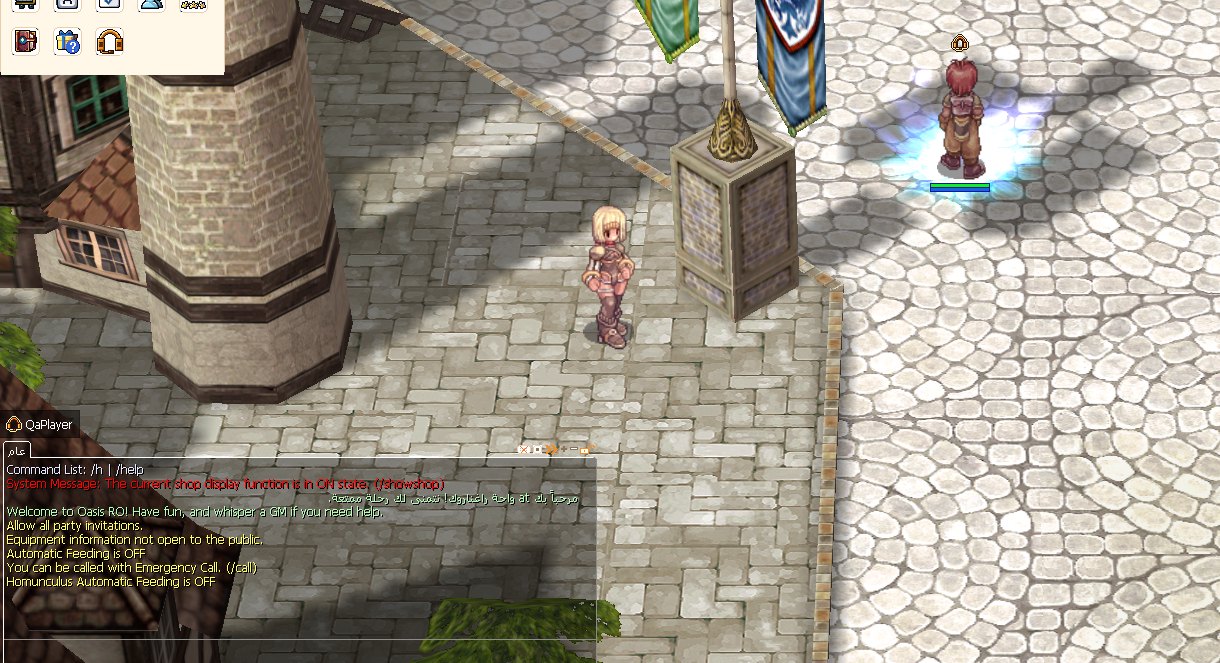
- A headset mark shows over the head of a character who talks, seen by the room's members only.
5. Volume and mute
- Each member has your own Volume bar, from 0% to 100%: drag it or use the arrows at its ends.
- The Mute box mutes that member for you only.
- Right-click a member's name for Mute for me; the guild's or party's leader also gets Mute for everyone: nobody in the room hears that member until they leave it. The muted member sees that the leader muted them.
Example: one member is loud, so you drop their bar to 50%; nobody else's sound changes.
6. Settings
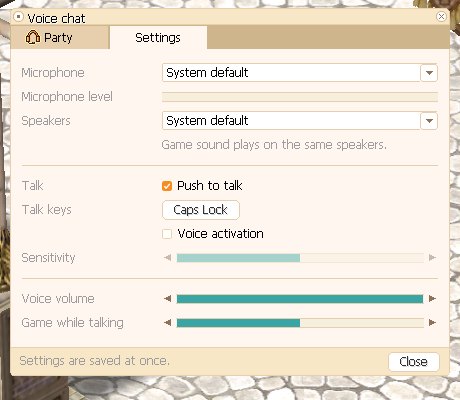
- Microphone and Speakers: the system default or any other device; a change applies at once, without leaving the room. The Microphone level bar moves with your voice.
- The game's sound plays on the same speakers; if you change them while playing, the game's sound moves to them the next time the game starts.
- Talk keys: click the button, then press one key or up to 3 held together (such as Ctrl + Alt + V), or the middle or a side mouse button. It's saved when you let go; Escape cancels.
- Sensitivity, with Voice activation: the higher it is, the quieter the voice the microphone picks up.
- Voice volume: everyone's voices together.
- Game while talking: when a member of your room talks, the game's sound drops to this level (50% at first), and comes back after.
Every setting is saved at once, on your computer.
7. Leaving and losing the connection
- One room at a time: joining another room leaves the first.
- Going back to character select or logging out takes you out of the room; you join again each time you log in.
- If the connection drops for a moment you see "Connection lost. Reconnecting…", and you're put back in the same room by yourself.
- If the team pauses voice chat, the window says it's stopped; the rooms come back once it's on again.
8. Questions
No Guild tab?
It shows once you're in a guild; the Party tab once you're in a party.
I can't hear anyone?
Check that the speakers picked in the settings are the ones you're listening on.
Nobody hears me?
The microphone level bar moves when you talk; if it doesn't, another microphone is picked. The leader may also have muted you for everyone.
The window stays on "Connecting to voice chat…"?
Some networks (work, some cafés) block voice connections.
Is voice recorded?
No, it passes to your room's members and is never kept.